

Compare AI product photography tools, copy six prompts, and size images for your product page, Google Shopping, app banners and push notifications.
You shot the hero product once, in good light, and it looks great on the product page. Then the requests start. A holiday banner for the app home screen. A square crop for Meta. A lifestyle shot for the push notification on Friday. A white-background version for Google Shopping. Each one is a new shoot, or a new ticket for a designer who is already behind.
The challenge was never the camera. It's the number of surfaces one product now has to appear on, each with its own shape, file limit and rules.
This guide covers the AI product photography tools worth paying for in 2026, a workflow that keeps the product accurate, copy-paste prompts, and the image limits for the surfaces: your mobile app's home screen and push notifications.
TL;DR
- AI product photography starts from a real photo of your product and uses generative AI to change the background, lighting, scene or format. It should not change the product itself.
- Free options cover most small catalogs. Shopify Magic's background generator works in the Shopify admin, and Google's Product Studio works in Merchant Center. Paid tools such as Photoroom ($12.99/month for Pro) and Pebblely ($9/month for 30 images) add batch work and templates (prices checked Nov 9, 2026).
- A workflow that holds up has four steps. Shoot one clean reference, generate scenes, fix details with editing instead of regenerating, then export per surface.
- Surface limits matter more than resolution. Firebase caps push notification images at 1 MB; Apple allows 10 MB image attachments; Google Merchant Center wants at least 500 x 500 pixels from January 31, 2027 and recommends 1500 x 1500.
- Google Merchant Center requires AI-generated images to keep their AI metadata (the IPTC DigitalSourceType tag). Don't strip it.
What is AI product photography?
AI product photography is the use of generative AI to create or edit product images, usually by placing a real product photo into a new background, scene, lighting setup or format. The product stays the same. Everything around it changes, from a white studio sweep to a bathroom shelf or a festive table.
There are two broad approaches. Background tools (Shopify Magic, Photoroom, Pebblely) cut out your product and generate a new setting behind it. General image models (Krea, Flair.ai's custom models, the image tools inside ChatGPT and Gemini) can build a full scene from a reference photo and a prompt, which gives more creative range and more room for the product to drift.
The cost argument is real but often overstated. Shopify cites a MindStudio case study in which an image that averaged $175 through traditional photography was generated for 50 cents to $2 (Shopify, September 2026). That holds for lifestyle variants. It doesn't hold for the reference shot itself, which you still need.
Which AI product photography tools are worth paying for?
Start with the free tools already inside your stack, then pay only when you need batch volume or a consistent look across hundreds of images. Here is how the main options compare.
Tool | Best for | Free option | Paid entry price | Watch out for |
Shopify Magic (media editor) | Swapping backgrounds on product images inside Shopify admin | Included with Shopify | n/a | Generates and replaces the background only; it can't edit or generate parts of the product |
Shopify Sidekick | Prompt-based image edits from the admin chat | Included with Shopify | n/a | One image at a time; no saved style recipes |
Google Product Studio | Backgrounds, upscaling and scenes for Shopping listings | Free in Merchant Center and the Google & YouTube app on Shopify | n/a | Built for Google surfaces, not your app or ads |
Photoroom | Batch background removal and marketplace templates | Capped free tier | Pro $12.99/month or $89.99/year (8,000 AI credits, 1,000 exports) | Shopify integration starts on Max ($34.99/month) |
Pebblely | Fast lifestyle backgrounds from 40+ themes | Trial | $9/month for 30 images; $19 for 200; $39 for 500 | Less control over lighting and angle |
Flair.ai | Branded scenes and custom product models | 5 images/month, no commercial license | Pro $8/month billed yearly ($10 monthly); Pro+ $26/month billed yearly ($35 monthly) adds the company commercial license | Check the license tier before you ship images to your store |
Licensing catches people out. Flair.ai only adds a company commercial license at Pro+, and many free tiers in this category don't include a commercial license at all. Read the license line before the price line.
Shopify's own tools are better than their reputation. If your catalog is under a few hundred SKUs and you mostly need clean backgrounds and seasonal variants, Shopify Magic plus Sidekick covers it at no extra cost. Our guide to Shopify Sidekick covers what else the assistant can do from the admin.
How does an AI product photography workflow run, step by step?
The workflow that produces usable images has four steps, and the third one is where most teams waste time.
- Shoot one clean reference. A phone photo works if the edges of the product are sharp, the label is legible and the lighting is even. Shoot every variant (colors, sizes) separately, because AI tools are bad at recoloring a product accurately.
- Generate scenes. Pair the reference with a prompt that names the surface, the light, the setting and the mood. Generate four to eight options per prompt rather than one.
- Fix details by editing, not regenerating. When a label is misspelled, a cap is the wrong shape or a shadow falls the wrong way, use the tool's region edit or inpainting on that spot. Regenerating the whole image to fix one detail usually introduces a new error somewhere else.
- Export per surface. Crop and compress separately for the product page, Google Shopping, social ads, your app's home screen banner and push notifications. One master file rarely fits all of them.
Then save the prompt. Keep a shared style guide of the prompts and settings you settle on, so every new product matches the last batch. A prompt library is the cheapest brand consistency tool you will ever own.
What prompts work for AI product photography?
Good prompts read like a brief to a photographer. They name the subject, surface, setting, light, camera and mood, plus what must not change.
Here's a reusable structure.
[Product, described exactly] on [surface], in [setting]. [Lighting]. Shot with [lens/angle]. [Color palette]. [Mood]. Keep the product's shape, label text and color exactly as in the reference image. Leave empty space on the [left/right/top] for text.
The last two sentences do most of the work. The first protects the product. The second makes the image usable for a banner or ad, where you will add a headline later.
Here are six prompts you can adapt, each written for a specific surface.
Product page, lifestyle
A 50 ml amber glass serum bottle with a white dropper, standing on a pale travertine bathroom shelf beside a folded linen towel. Soft morning window light from the left, gentle shadow to the right. 85mm lens, eye level. Warm neutral palette. Calm, clean mood. Keep the bottle shape, label text and color exactly as in the reference.
Google Shopping or marketplace main image
The product from the reference photo on a pure white seamless background, centered, filling most of the frame. Even, shadowless studio light. No props, no text, no logos added. Keep the product exactly as in the reference.
App home screen banner (wide)
A pair of white leather sneakers on a sunlit concrete step, shot low from the side. Hard afternoon sun with long shadows. Wide composition with the shoes on the right third and clean empty concrete on the left two thirds for a headline. Muted warm tones.
Push notification image
A single ceramic coffee mug in deep green, close-up, filling the center of a square frame against a soft blurred kitchen background. Bright, high-contrast light so the product reads at small sizes. No text in the image.
Seasonal collection tile
Three scented candles from the reference, arranged on a dark wooden table with pine sprigs and a few warm fairy lights out of focus behind. Low warm light, cozy evening mood. Square crop with the products centered.
Social ad variant
The handbag from the reference held by a model's hand at hip height, street setting in a European city, overcast daylight. Vertical 4:5 composition. Natural, editorial feel, not glossy.
The push prompt leaves text out on purpose. Phones crop and shrink notification images, and words baked into the image get cut off or become unreadable. Put the message in the notification text instead. Our push notification templates cover the copy side.
How should you size AI product images for app screens and push notifications?
Most AI product photography guides stop at the product page and social. Your mobile app adds two more surfaces with their own limits. One is in-app banners and collection tiles, and the other is push notification images. The push limits are the strict ones, and they are set by Apple and Google, not by your app builder.
Surface | Hard limit | Practical target | Source |
Push image, Android and iOS via Firebase Cloud Messaging | 1 MB per image; 300 KB if uploaded through the Firebase Notifications composer | Compress well under 1 MB; keep the product centered | |
Push image attachment, iOS (native) | 10 MB for JPEG, GIF or PNG | Same file as Android, so the 1 MB cap still rules | |
Shopify product images | Up to 5000 x 5000 px and under 20 MB | Square, consistent across the catalog | Shopify Help Center, product media types |
Google Merchant Center main image | At least 500 x 500 px from Jan 31, 2027; max 64 megapixels and 16 MB | 1500 x 1500 px or larger, product only, no overlays | |
App home screen banners and tiles | Set by your app's block and theme | Export at the block's aspect ratio; leave safe space for text | Your app builder's block settings |
Three practical rules follow from this.
Design push images for a thumbnail. Firebase's 1 MB cap applies to every Android device your push reaches, so a 4 MB studio export will fail or be dropped. A single product, centered, with strong contrast survives the shrink. A flat lay of nine products does not.
Keep text out of the image, except in banners. Notification and Shopping images should carry no text. Google Merchant Center disapproves main images with promotional overlays, calls to action or added logos. Banners are different. Your app's home screen banner can carry a headline, which is why the banner prompt above leaves empty space.
Generate wide and crop down. One wide scene with the product on a third gives you a banner, a square tile and a vertical story crop from the same generation. It is faster than prompting each format separately and keeps the look consistent.
Where does AI product photography break?
AI product photography breaks when the product itself changes, and that is also where the rules start to bite.
- Labels and small text: Generative models still misspell label text, change fonts and invent ingredients. Check every label at 100% zoom before export. For regulated categories (supplements, cosmetics with claims, food), keep the label from the original photo and generate only the background.
- Scale: If the product looks too large or too small for the generated scene, add its real dimensions to the prompt. A ring that looks the size of a donut sets up a return.
- Color: Recoloring a product to show a variant you never photographed is the fastest way to a "not as pictured" complaint. Shoot each color.
- Platform rules: Google Merchant Center requires that images created with generative AI keep metadata showing they were AI-generated, such as the IPTC DigitalSourceType value TrainedAlgorithmicMedia, and tells merchants not to remove it (Google Merchant Center Help, 2026). Some export and compression tools strip metadata by default, so check your pipeline.
Honesty. Shopify reports Stylitics data showing that 71% of shoppers can't reliably tell AI product photos from traditional ones, and that shoppers cared more about product accuracy than about AI use (Shopify, September 2026). So if shoppers can't spot the AI, they will judge you on whether the thing in the box matches the picture. US advertising law already requires ads to be truthful, and a misleading product image is misleading whatever tool made it.
What does this look like for a real catalog?
Take a hypothetical home fragrance brand with 40 candles and a mobile app. Before AI, each seasonal campaign meant a one-day shoot for the hero set, then a designer cropping files for the website, Meta, the app banner and push. Most products never got a seasonal shot at all.
After moving to an AI workflow, the brand shoots each candle once on white, keeps a saved prompt per season ("dark wood table, pine, warm fairy lights out of focus"), generates scenes in a batch tool, fixes the occasional melted-looking wick with region editing, and exports four crops per product. Every product gets a seasonal image, the app home screen gets a fresh banner each week, and the push notification for the holiday drop carries an image that actually loads.
The shoot didn't disappear. It got smaller and more valuable, because every reference photo now feeds dozens of images.
Where do AI product images go in your mobile app?
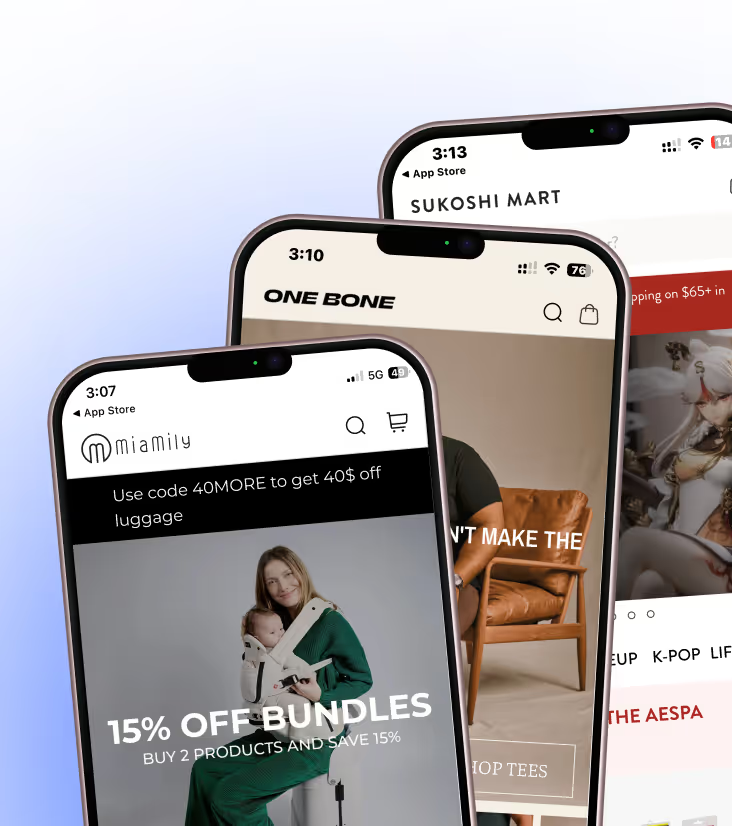
Your app is where the images you generate get seen most often by your best customers, in the home screen banner, the collection tiles, the image slider and the push notification that brings people back. It is also the surface that most often lags behind the website, because every swap used to need someone to rebuild a screen.
Appbrew builds your Shopify mobile app from your store, so product images, collections and variants come across as they are. Appbrew's image marquee block shows several product or offer images in an auto-scrolling slider. Milo, Appbrew's AI agent, takes a plain-English request such as "swap the home banner for the holiday collection and feature the candles on the home grid", builds the change as a draft and waits for your yes before anything goes live. The Milo walkthrough shows that loop end to end.
For the push side, Appbrew's push notifications let Milo draft the segment, message and schedule from a campaign goal, and you approve the send.
For more on preparing your catalog for AI shopping tools, read our guide to product descriptions for AI shopping assistants and our roundup of the best AI tools for ecommerce.
Frequently Asked Questions
Can I use AI for product photography?
Yes. Start from a real photo of your product and use AI to change the background, scene, lighting or format. Free options include Shopify Magic in the Shopify admin and Google's Product Studio in Merchant Center. Keep the product itself unchanged so the image matches what the customer receives.
What is the best AI tool for product photography on Shopify?
For most Shopify stores, start with Shopify Magic and Sidekick, which are included with Shopify. Move to Photoroom when you need batch editing and marketplace templates (Pro is $12.99/month; Shopify integration starts on Max at $34.99/month), or Pebblely for quick lifestyle backgrounds from $9/month.
Is there a free AI product photography tool?
Shopify Magic's background generator and Sidekick are free for Shopify merchants, and Google's Product Studio is free in Merchant Center. Most standalone tools have free tiers with caps, watermarks or no commercial license, so check the license before you put free-tier images on your store.
What size should push notification images be?
Keep push notification images under 1 MB. Firebase Cloud Messaging limits notification images to 1 MB (300 KB if uploaded through the Firebase composer), while Apple allows 10 MB image attachments on iOS. Use one centered product with strong contrast and no text, because phones shrink and crop these images.
Do I have to disclose AI-generated product images?
Google Merchant Center requires images made with generative AI to keep metadata marking them as AI-generated, such as the IPTC DigitalSourceType tag, so don't strip it. Beyond platform rules, the image must accurately show the product you sell. Accuracy matters more to shoppers than whether AI was used.
Milo drafts the change and waits for your yes before anything goes live.